Microsoft Teams automation runs on Power Automate (also shown as Workflows inside Teams) and, increasingly, Copilot agents, to handle approvals, tasks and notifications without a human touching them. The fastest wins are approval flows, onboarding sequences, task creation from messages, form alerts and SharePoint file notifications. Businesses using Power Automate save an average of 46 minutes per user per day on repetitive tasks, so even a small rollout adds up fast.
TL;DR:
- Automation of approval workflows, onboarding, and file notifications can save up to 46 minutes per user daily, reducing manual tasks significantly.
- Building effective flows requires choosing the right templates, testing in staging, and maintaining clear naming and version control to avoid failures.
- Implementing strong governance policies, including permissions and data loss prevention, is essential to prevent unmanaged flow proliferation and ensure compliance.
- Licensing costs are mainly tied to premium connectors and high-volume runs, so organizations should monitor their usage before investing in higher-tier plans.
- Proper error handling, user training, and starting with small, successful automations are key to driving adoption and maintaining trustworthy Teams workflows.
Table of Contents
- High-impact Teams automations to build first
- How to build a Teams workflow: template, test, publish, measure
- Governance, permissions and admin controls for safe scale
- Licensing, run limits and cost considerations
- Error handling, troubleshooting and debugging Teams flows
- Security considerations for Teams automations
- Connecting Teams automations to external services and APIs
- Performance optimisation for complex Teams automations
- User adoption and training for a successful automation rollout
- When to build in-house and when to engage a specialist partner
- Throughline Automation: a practical route to delivered Teams automations
- Authoritative Microsoft docs and reference links
- Sources
- FAQ
High-impact Teams automations to build first
You don’t need to automate everything at once. Pick the automations with the biggest time drain and the smallest build effort, then work down the list.
- Approval workflows: a message posts in a channel, a manager approves or rejects with one click, the result logs to SharePoint or Dynamics. Takes minutes to build from a template.
- Onboarding flows: a new starter triggers a checklist, account provisioning tasks and a welcome message across Teams and Outlook. Usually half a day to set up properly.
- Task creation from messages: flag a Teams message and it becomes a Planner or To Do task, assigned automatically. Minutes, using the Teams Tasks app and the Planner business scenario API.
- Form submission alerts: a Microsoft Forms or Power Apps submission posts straight into the right channel, no one checking inboxes. Under an hour.
- SharePoint file notifications: a document upload or edit pings the relevant team instantly. Fast to build, high value for construction, property and professional services teams juggling file versions.
- Copilot agents: these sit apart from standard flows. They summarise threads, draft replies and surface action items, but need more setup and testing before you trust them with client-facing work.
Microsoft’s own internal rollout of an Automation Catalog inside Teams is a useful scale check. It served 23,000 users and saved an estimated 250,000 hours of manual work over two years, built almost entirely from pre-packaged templates rather than custom code.
How to build a Teams workflow: template, test, publish, measure
Every reliable Teams automation follows the same build pattern. Skip a step and you end up debugging in production, which nobody enjoys.
- Find a template. Search the Workflows app inside Teams or the Power Automate web portal for a close match, such as “approval” or “SharePoint file created”. Most first-time builders get something working within 10 to 20 minutes using a template rather than a blank flow.
- Choose the trigger. Decide what starts the flow, a new message, a form submission, a file change, a scheduled time.
- Set the actions. Add what happens next, post a card, create a task, update a list, send an email.
- Add conditions. Build in branching logic so the flow only fires when it should, not on every single event.
- Test in a staging team. Run it in a dedicated test Team before touching live channels. Check the output, not just whether it ran.
- Publish and monitor. Turn it on, then check Power Automate’s run history weekly for failures. Set up error alerts so a broken flow doesn’t sit silently for a month.
- Version and name clearly. Use a naming convention like “Approvals_Invoices_v2” so anyone can tell what a flow does and whether it’s current.
Common examples worth building first: an in-channel approval for invoices, a Planner task created automatically from a flagged message, and a SharePoint file alert that posts to the relevant channel the moment a document lands.
Pro Tip: Run your first automation on one team, with one clear success measure, for two weeks before rolling it out wider. It’s far easier to fix a flow serving 10 people than one already live across 40 channels.
Governance, permissions and admin controls for safe scale
Automation without governance is how a business ends up with 200 forgotten flows and no idea who owns them. Set the controls before you scale, not after.
- App permission policies control which connectors and templates staff can use.
- App setup policies decide which automations show up by default in Teams.
- Environment controls in the Power Platform admin centre separate test flows from production ones.
- Data loss prevention (DLP) policies block flows from mixing sensitive data (like HR records) with lower-trust connectors.
- Allow lists restrict which external services a flow can talk to.
Treat every workflow as a permission grant, not just a convenience. Each one gets the same scrutiny you’d give a new app request, because that’s effectively what it is. Microsoft’s own guidance recommends migrating legacy connectors to Workflows rather than leaving old, unsupported integrations running unmonitored.
Set a rollout checklist: who can create flows, who approves new connectors, how often you audit run logs, and how long logs are retained. For organisations managing dozens of flows across departments, PowerShell scripting through the Power Platform admin tools makes bulk policy changes far faster than clicking through the interface one flow at a time.
Licensing, run limits and cost considerations
A basic version of Power Automate is included in most Microsoft 365 business plans, covering standard connectors like Teams, SharePoint and Outlook. Premium connectors, higher run volumes, and Copilot add-ons require standalone licensing on top of what’s bundled.
Before buying anything extra, estimate how many times a candidate flow will actually run each month. A daily approval flow across one department might run 30 times a month, well within included limits. A company-wide notification flow firing on every file edit could run thousands of times, which is where premium licensing conversations start.
Start with what’s already included, watch your run counts in the admin centre for a month, then upgrade only where the data shows you need to.
Error handling, troubleshooting and debugging Teams flows
Flows fail quietly if you let them. Build in visibility from day one, not after something breaks and nobody notices for three weeks.
Add a “configure run after” step on critical actions so the flow catches a failure and sends an alert instead of dying silently. Use try-catch-style scoping, group your main actions in one scope and your error handling in a parallel scope, so one failed step doesn’t take down the whole flow.
Check run history in Power Automate weekly, not just when someone complains. Look for patterns, a connector timing out at the same time each day usually points to a throttling limit, not a bug in your logic.
Name your error alerts clearly and send them to a shared channel, not one person’s inbox, so troubleshooting doesn’t depend on whoever happens to be online. Keep a simple log of known issues and fixes, most flow problems repeat across teams once you’ve solved them once.
Test with real data volumes before publishing, not just a single sample record. A flow that works fine on one test file can behave differently against a SharePoint library with 10,000 documents.
Security considerations for Teams automations
Every automation touches data, which means every automation is a compliance question, not just a productivity one. Treat data privacy the same way you’d treat any other integration into Teams.
Check what each flow actually stores and where. A flow pulling customer records into a spreadsheet output needs the same handling rules as the source system, not a lighter version because it’s “just automation”.
Use DLP policies to stop sensitive data (health records, financial details) flowing into connectors that shouldn’t touch it. This matters most for healthcare, aged care and NDIS providers moving client information through Teams and SharePoint together.
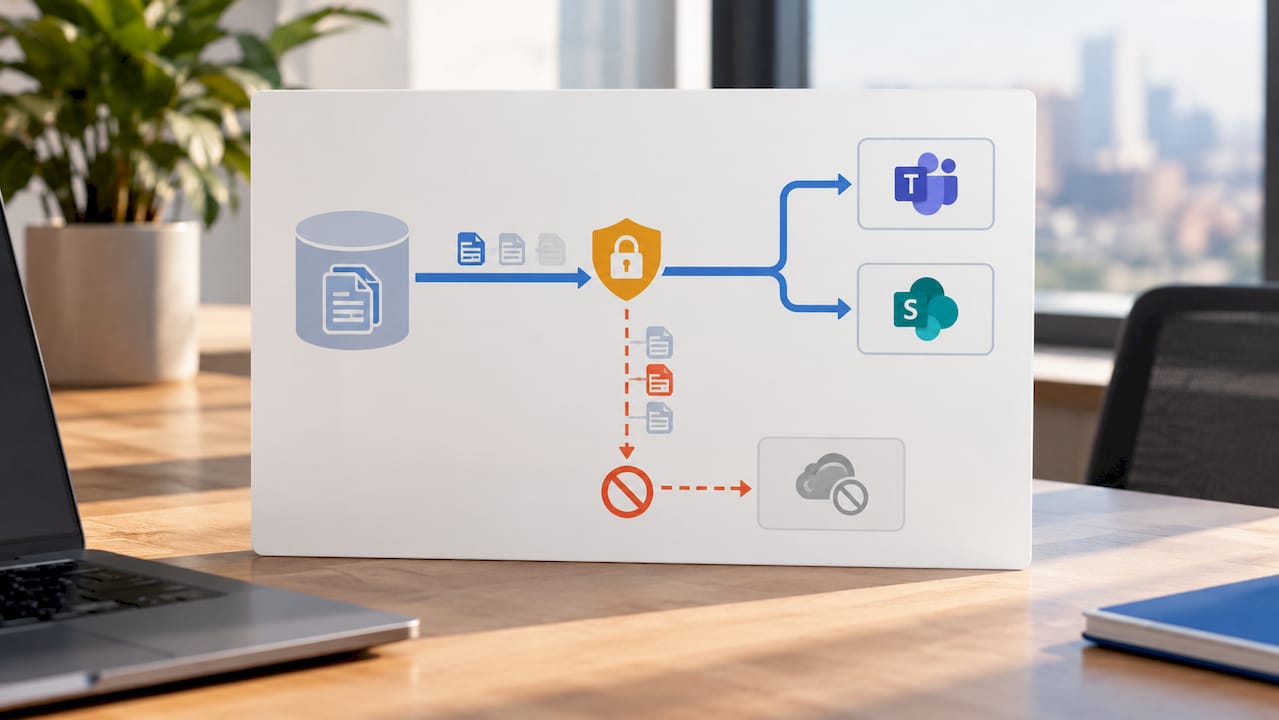
Review who has access to view flow run history, because run logs often contain the actual data that passed through the flow, not just metadata. Set retention periods that match your organisation’s compliance obligations rather than leaving default settings in place. Audit connector permissions quarterly. A flow built two years ago by someone who’s left the business is still running with whatever access it was originally granted.
Connecting Teams automations to external services and APIs
Standard connectors cover most common systems, Salesforce, SAP, Xero, Google Workspace, but plenty of businesses run software with no ready-made connector. That’s where custom connectors come in.
A custom connector wraps any REST API in a format Power Automate can call like a native connector, letting you trigger flows from, or push data into, practically any system with an API. Building one means defining the API’s endpoints, authentication method and request format inside the custom connector wizard, then testing it against real API calls before publishing it for wider use.
This matters most for industry-specific software, practice management systems in healthcare, trust accounting platforms in property, or bespoke recruitment databases, none of which show up in Microsoft’s standard connector list. Rather than replacing that software, a custom connector lets Teams automation sit on top of it.
Keep custom connectors documented properly, including authentication details and rate limits, because the person who builds one is rarely the person maintaining it a year later. Test error responses specifically, an API returning an unexpected format is one of the most common causes of a flow failing silently downstream.
Performance optimisation for complex Teams automations
Flows slow down for predictable reasons: too many sequential steps, unnecessary loops, and calls to slow external systems.
Run independent actions in parallel branches rather than one after another, this alone can cut a flow’s total run time significantly on multi-step approvals. Filter data as early as possible in the flow, pulling 10,000 SharePoint rows then filtering them down to 20 wastes time and run capacity that filtering upfront would save.
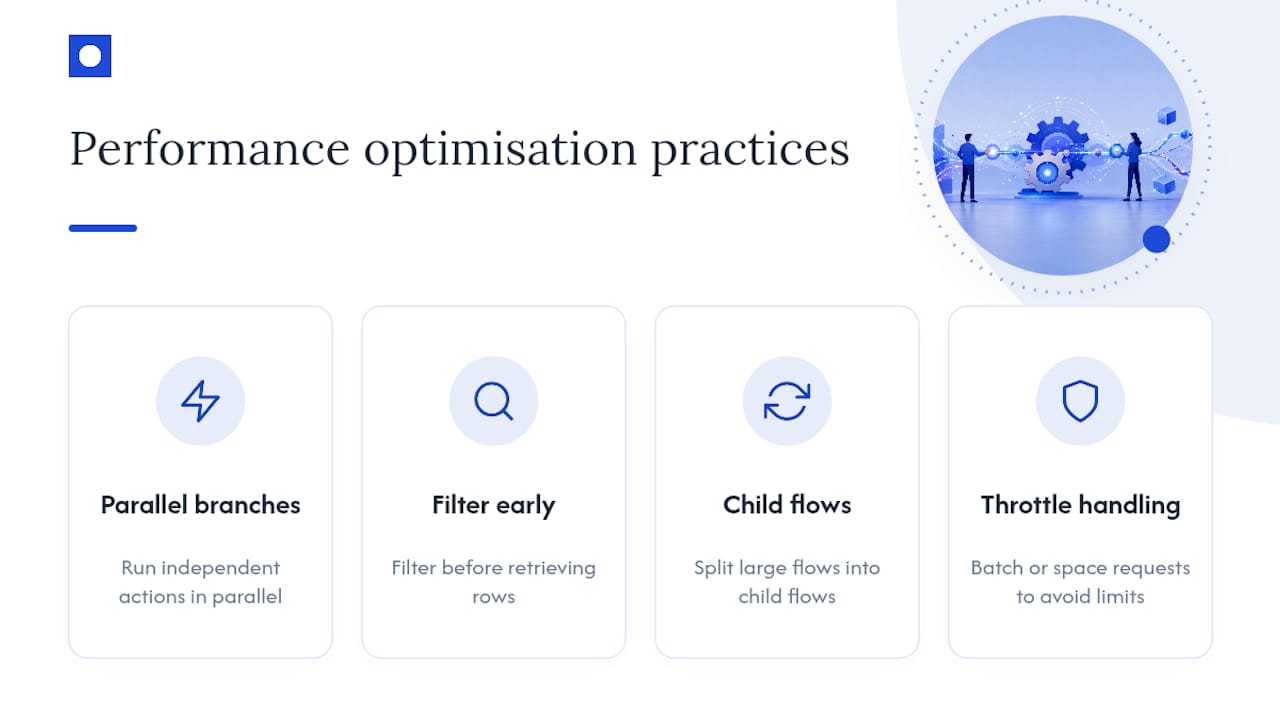
Break large, complex flows into smaller child flows that call each other. It’s easier to debug, easier to reuse, and less likely to hit a single point of failure that takes down an entire process. Avoid nested loops wherever you can, they’re one of the biggest causes of flows timing out on larger data sets.
Watch connector throttling limits, especially on SharePoint and Outlook, which cap how many calls a flow can make in a short window. Spacing out high-volume flows, or batching requests, avoids hitting those ceilings during busy periods.
User adoption and training for a successful automation rollout
The best-built flow is worthless if nobody trusts it or knows it exists. Adoption fails more often from silence than from bad design.
Run a short session showing exactly what changed for the team, “approvals now happen in this channel, not by email” is more useful than a generic training deck. Nominate one person per team as the automation contact, someone who knows enough to answer “why didn’t this work?” without escalating every question to IT.
Publish a simple one-page guide per automation: what it does, what triggers it, who to contact if it breaks. Review adoption after two weeks, not just at launch, flows that looked fine on day one sometimes get quietly ignored once the novelty wears off.
When to build in-house and when to engage a specialist partner
Build in-house when the automation touches one system and one team. Bring in a partner when you’re integrating multiple systems, handling compliance-sensitive data, or have no spare IT capacity to maintain what you build.
A credible partner engagement starts with discovery, mapping your highest-cost manual processes, then builds and integrates the automation, then hands over measurable results. Throughline Automation runs this as a defined 90-day transformation. Whichever path you choose, track the hours saved and convert them to dollars. That’s the number that justifies the investment.
Throughline Automation: a practical route to delivered Teams automations
Building flows yourself works well for one team and one system. It gets harder fast once you’re juggling approvals across five departments, legacy connectors nobody documented, and compliance rules that change by client type. Throughline Automation exists for that harder version of the problem, integrating automation into the software you already run, without a system migration or a rebuild.
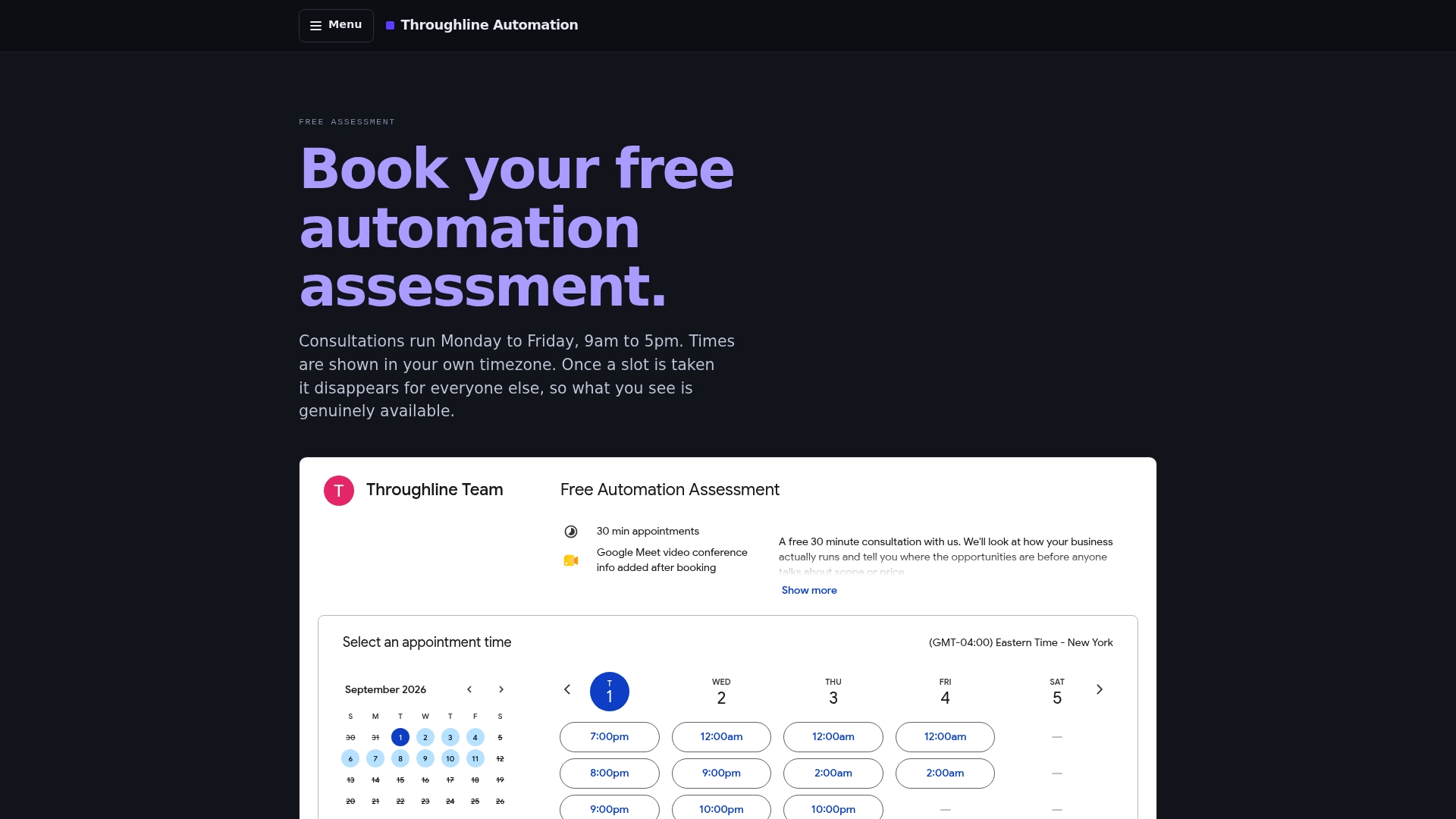
Every engagement starts with a free 30-minute automation assessment, where Throughline Automation maps your highest-cost manual workflows before recommending anything. From there, delivery runs through the same 90-day transformation process: map, build, integrate, hand over measurable time and cost savings. Before you book, write down one process that’s eating hours each week, and roughly how long it takes your team, that single example is often enough to start the conversation. If you already run automations on other platforms, Throughline Automation’s integrations approach connects new workflows to what you’re already using rather than replacing it.
Authoritative Microsoft docs and reference links
- Use the Teams connector in Power Automate, Microsoft Learn’s module on building approval flows, notifications and invoice approvals inside Teams.
- Eliminating mundane repetitive tasks with our new Microsoft Teams app, Microsoft’s internal case study on its Automation Catalog and template library.
- Task automation for your frontline with Microsoft Teams, details on the Planner business scenario API for task creation.
Sources
- Eliminating mundane repetitive tasks with our new Microsoft Teams app - Inside Track Blog
- The Total Economic Impact Of Microsoft Power Automate — Forrester
- Use the Teams connector in Power Automate - Training | Microsoft Learn
FAQ
What are automations in Microsoft Teams?
They’re flows, built mostly in Power Automate or the Workflows app, that trigger actions like approvals, notifications and task creation automatically inside Teams channels and chats.
Is Power Automate discontinued?
No. Power Automate is actively developed and increasingly integrated with Copilot agents, and it remains the primary automation engine behind Teams workflows.
Can I create a bot for Teams?
Yes, using the Microsoft Teams Toolkit or Bot Framework, though most day-to-day automation needs, approvals, alerts, task creation, are better served by Power Automate flows than a custom bot.
How do I make Microsoft Teams start automatically?
That’s a device setting, not an automation flow, adjust it through Teams’ own settings menu under “Application” or your operating system’s startup app list, not Power Automate.
Do I need a specialist to build Teams automations?
Simple, single-system flows are often manageable in-house using templates. For automations spanning several systems or carrying compliance risk, an engagement like Throughline Automation’s 90-day transformation delivers faster, measurable results.